Nborly Help Center
Learn how to use Nborly, ask for help, volunteer, send messages, receive notifications, and install Nborly on your phone.
How to Use Nborly
Watch a short walkthrough showing how to get started with Nborly.
What do you need help with?
Select a topic below to jump directly to the instructions.
🚀 Getting Started
1. Create Your Account
Select Join Nborly and create your account. If you already have an account, select Sign In.
2. Join a Community
Open My Communities and find your church, school, neighborhood, family group, or other community.
🏘 Open My Communities3. Wait for Approval
Some communities require approval from a Community Admin before you can participate.
4. Enable Notifications
Turn on notifications so Nborly can let you know when someone responds to your help request, sends a message, or posts something important.
❤️ How to Ask for Help
2. Describe What You Need
Choose your community and enter a clear title and description. Add the requested date and preferred time.
3. Submit Your Request
Eligible members of your community will be able to see your request and offer to help.
4. Review Volunteer Offers
When someone offers to help, Nborly will notify you. Review the offer and select the volunteer you want to help.
5. Confirm Completed Help
After the volunteer completes the work, review the completed service and confirm it.
🙋 How to Volunteer
2. Choose a Help Request
Review open requests from your communities. Select one to see the details.
3. Offer to Help
Offer to help and include a short message if needed. The requester will receive a notification.
4. Wait for Confirmation
If the requester chooses you, Nborly will notify you that your offer was accepted.
5. Complete the Service
After helping, submit the completed service. The requester will be notified and can confirm completion.
💬 How to Send a Private Message
- Open Messages.
- Select New Message.
- Choose the community member you want to contact.
- Type your message.
- Select Send Message.
🔔 Notifications
Notifications help you stay informed when something important happens in Nborly.
- Sign in to Nborly.
- Go to the Home page.
- Find Nborly Notifications.
- Select Enable Notifications.
- Select Allow when your browser or phone asks for permission.
- New help requests
- Volunteer offers
- Help completion
- Private messages
- Community updates
🍎 Install Nborly on iPhone / iPad
Follow these steps using Safari.
Open Nborly.org
Open Safari and go to Nborly.org.
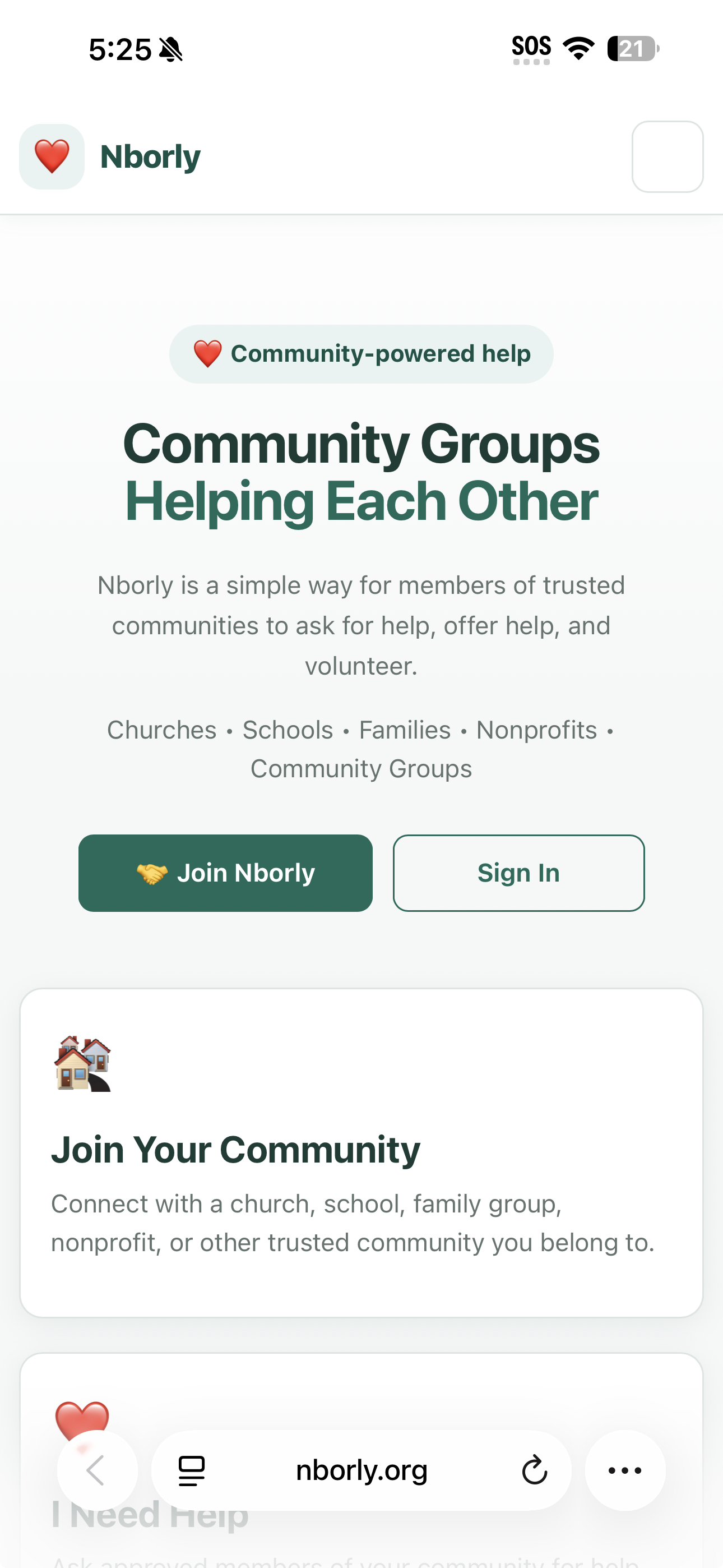
Open the Safari Menu
Tap the menu button at the bottom of Safari. Then select Share.
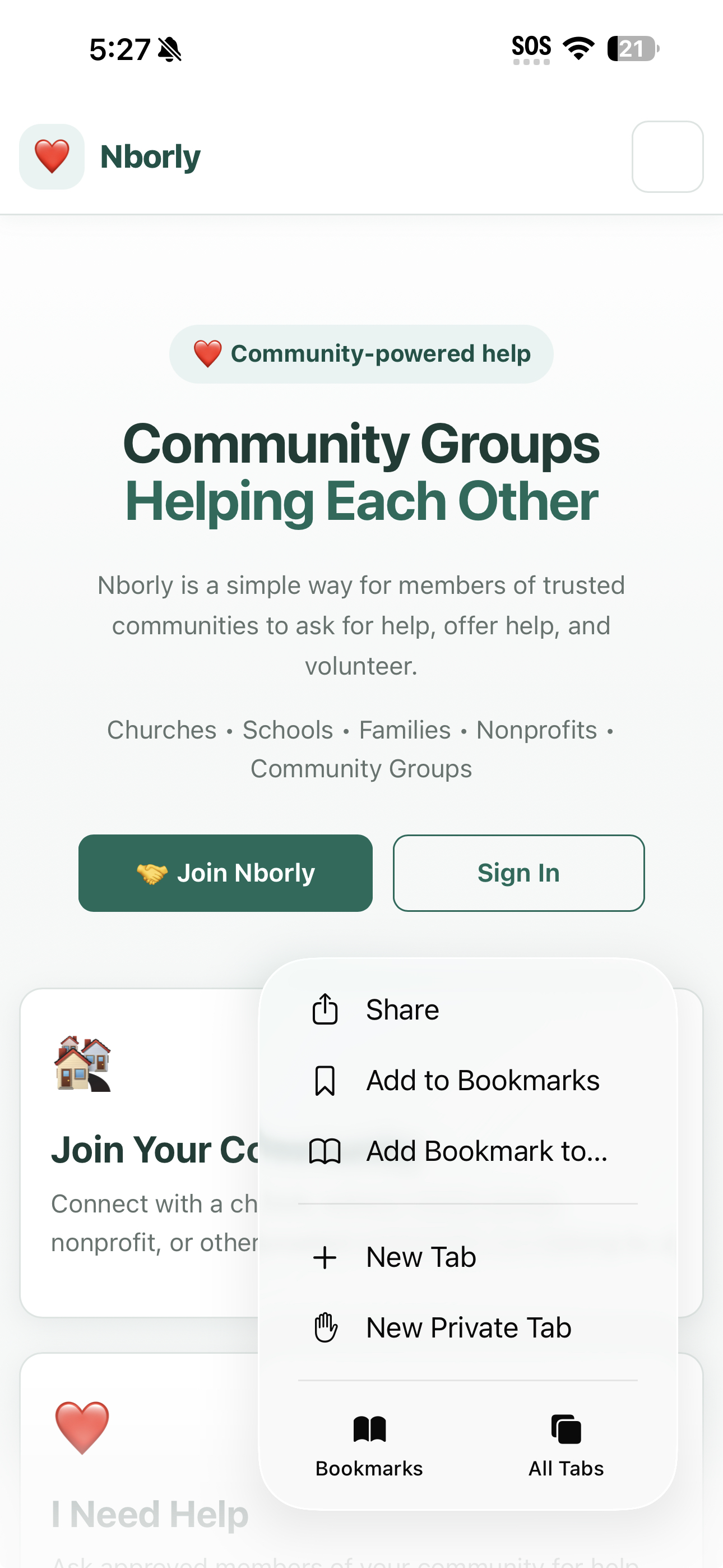
Add to Home Screen
In the Share menu, select Add to Home Screen.
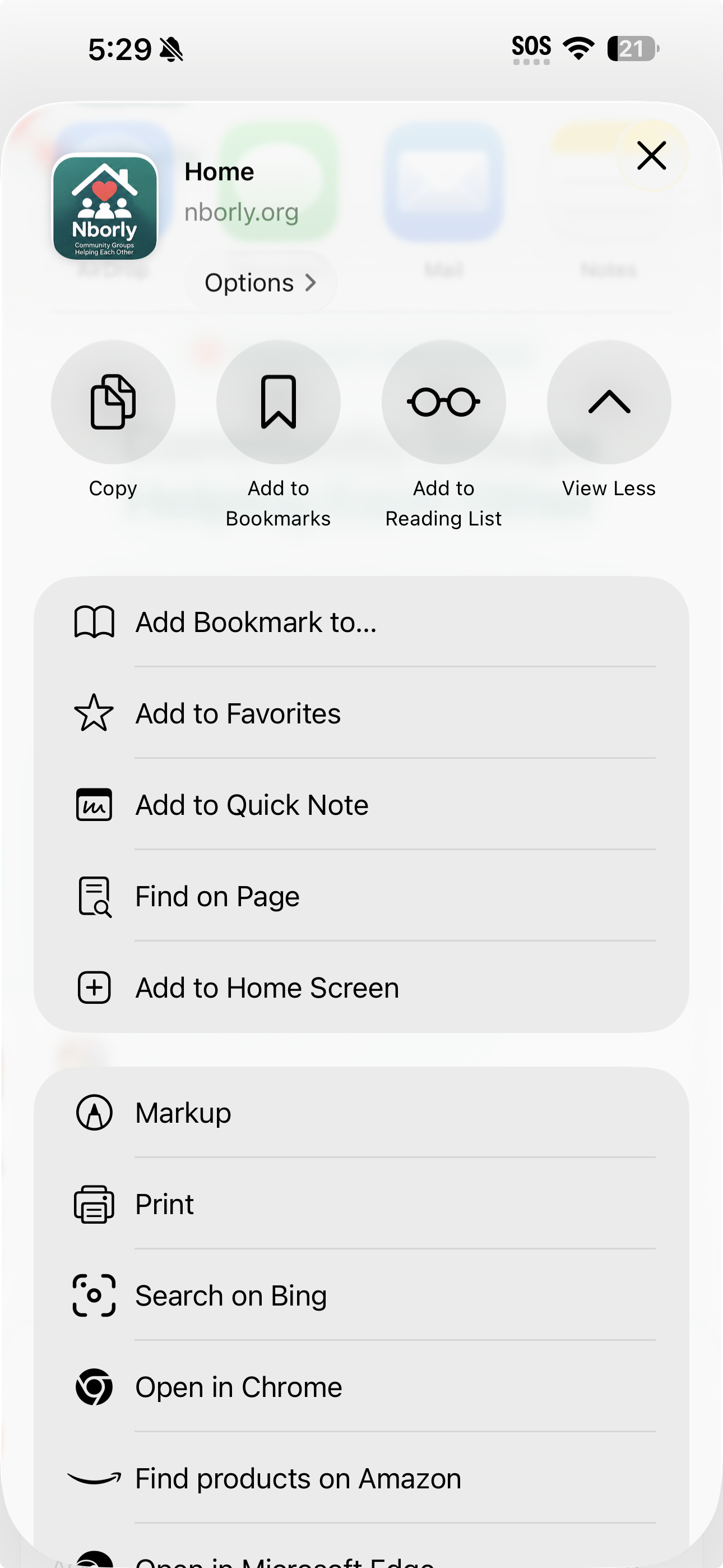
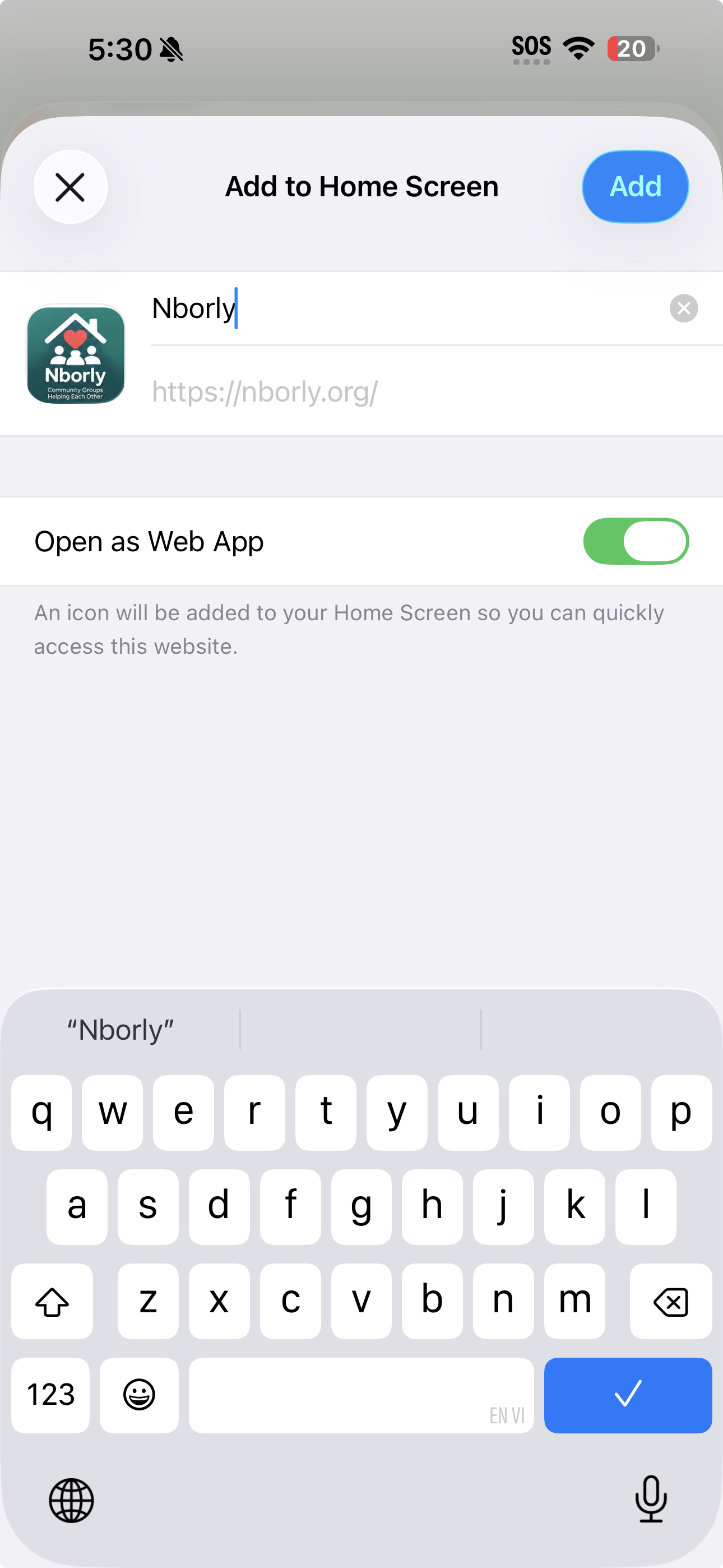
Confirm Nborly
Make sure the name says Nborly. Leave Open as Web App turned on. Then tap Add.
Find the Nborly Icon
The Nborly icon will now appear on your iPhone Home Screen.
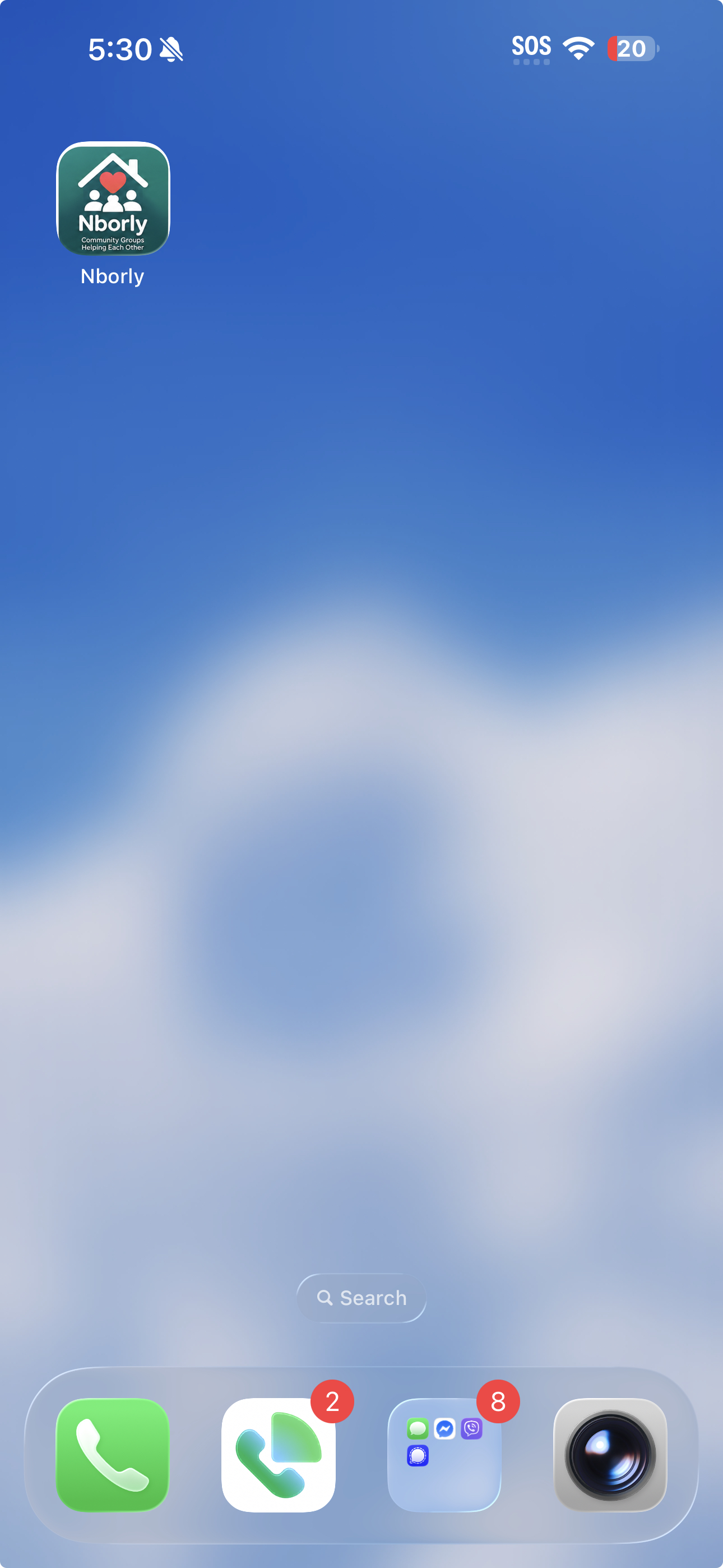
Open Nborly
Tap the Nborly icon. Nborly will open in its own app window without the Safari controls.
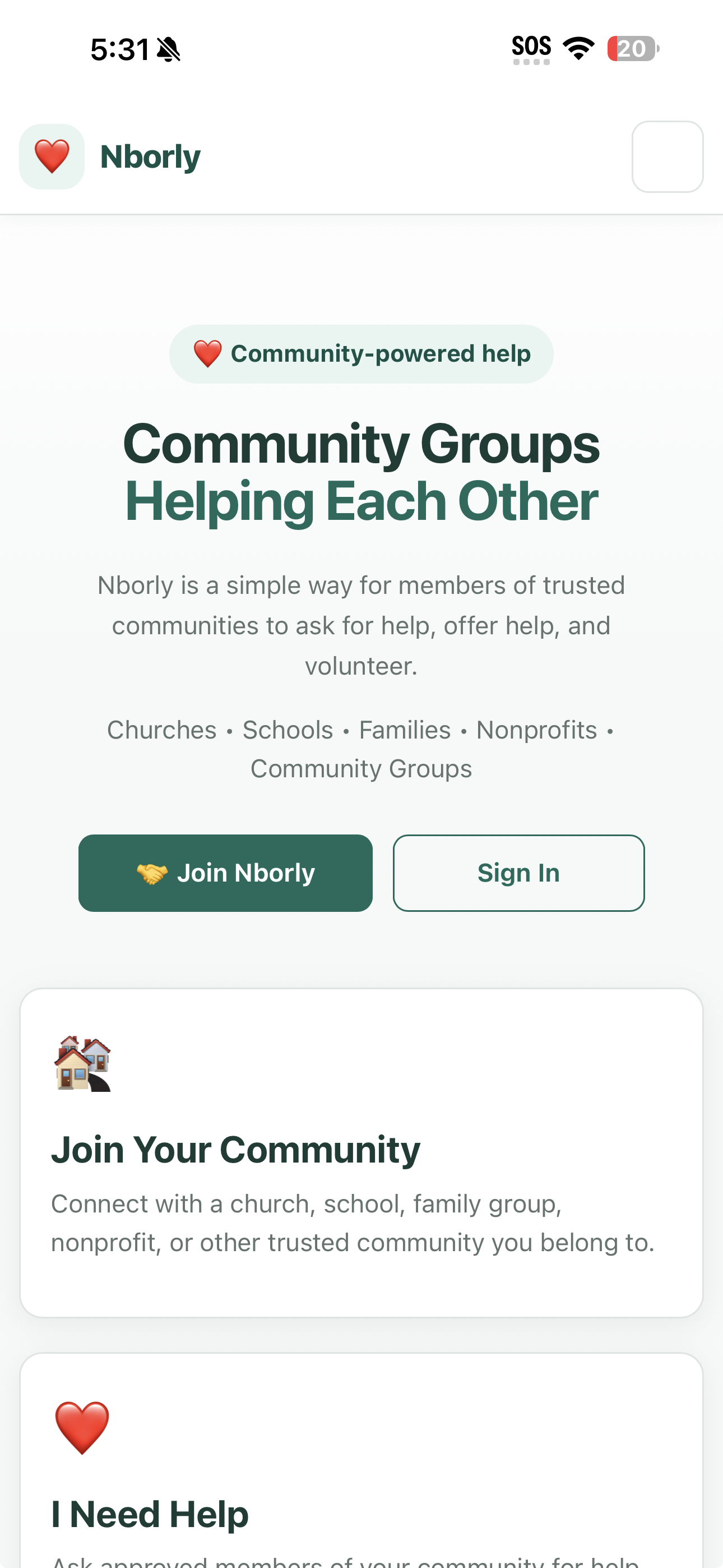
🤖 Install Nborly on Android
Follow these steps using Chrome.
Open Nborly.org
Open Chrome and go to Nborly.org.
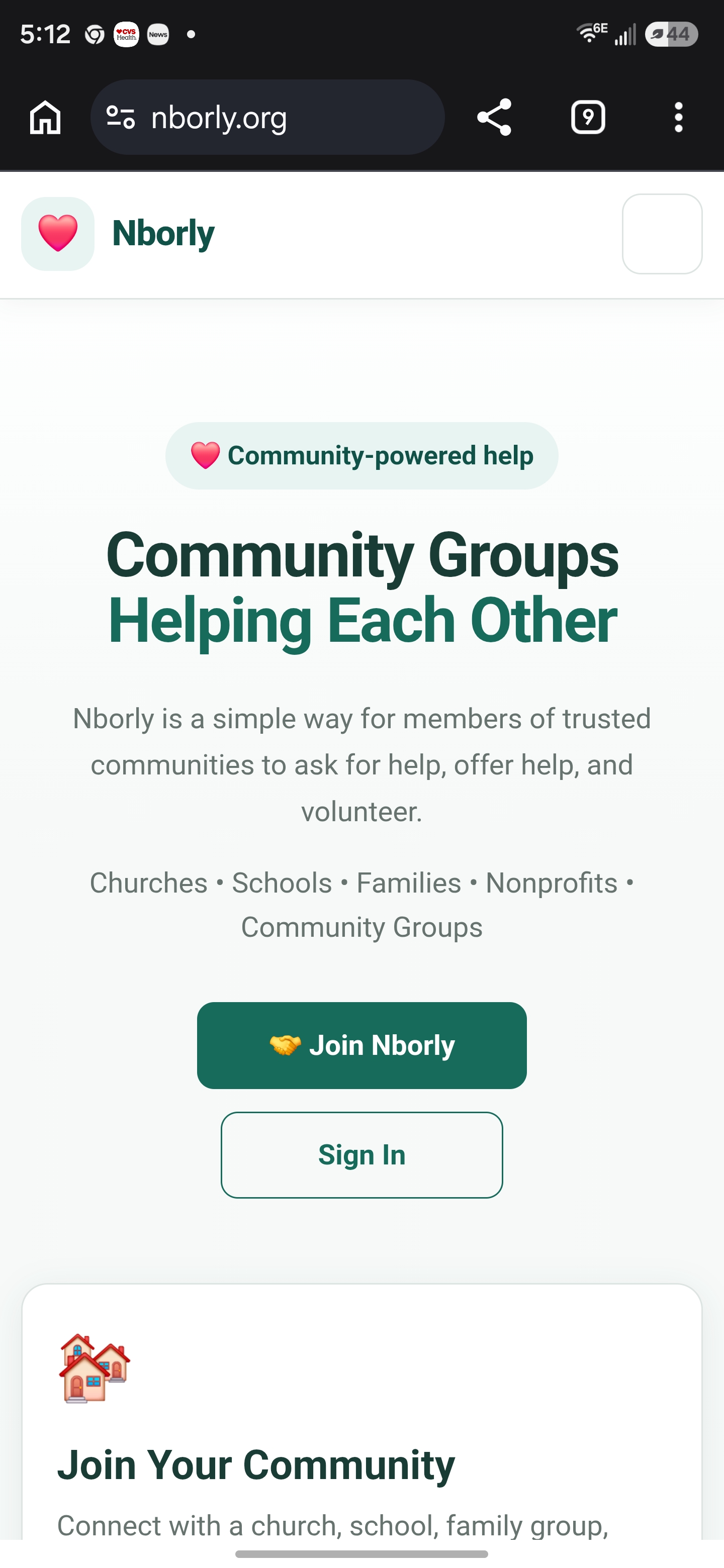
Open the Chrome Menu
Tap the three-dot menu in Chrome.
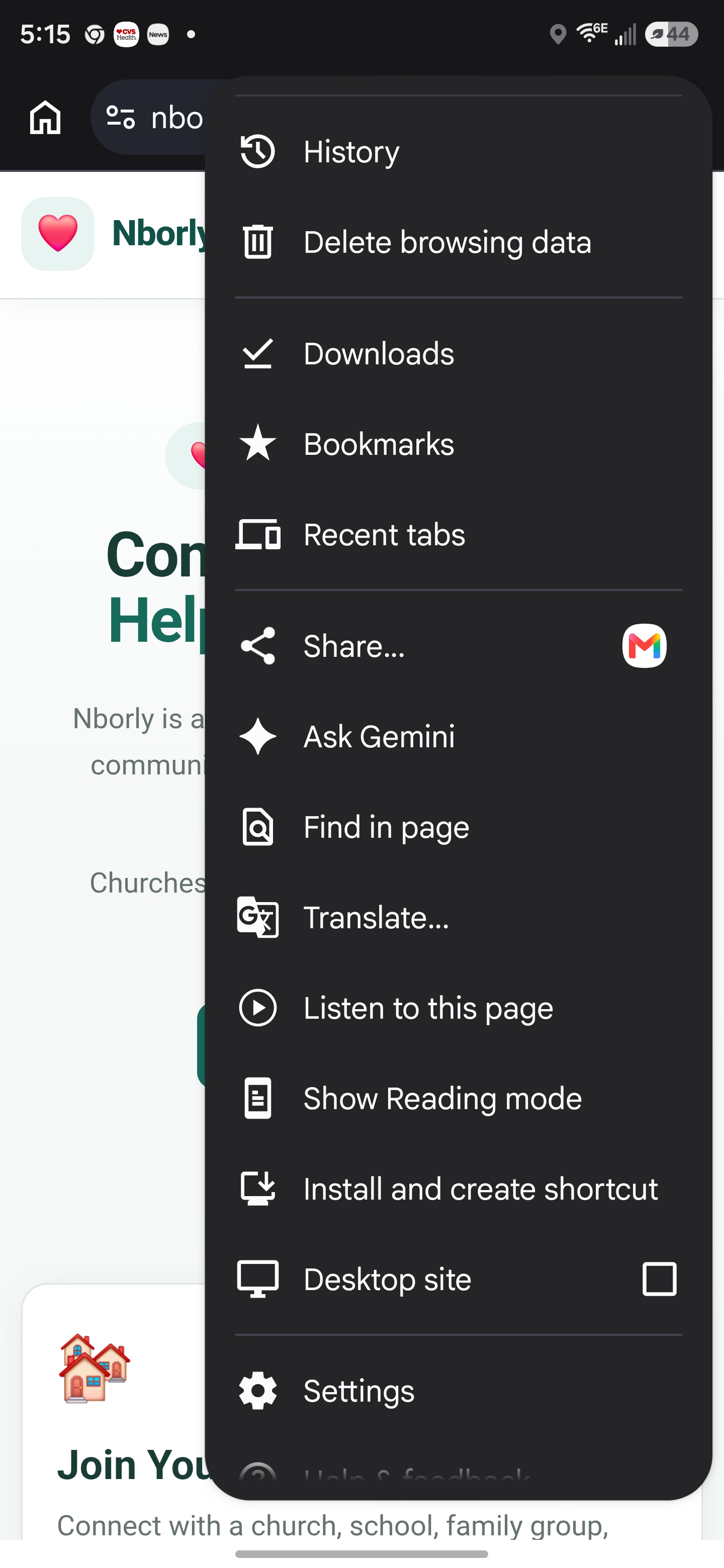
Install and Create Shortcut
Select Install and create shortcut.
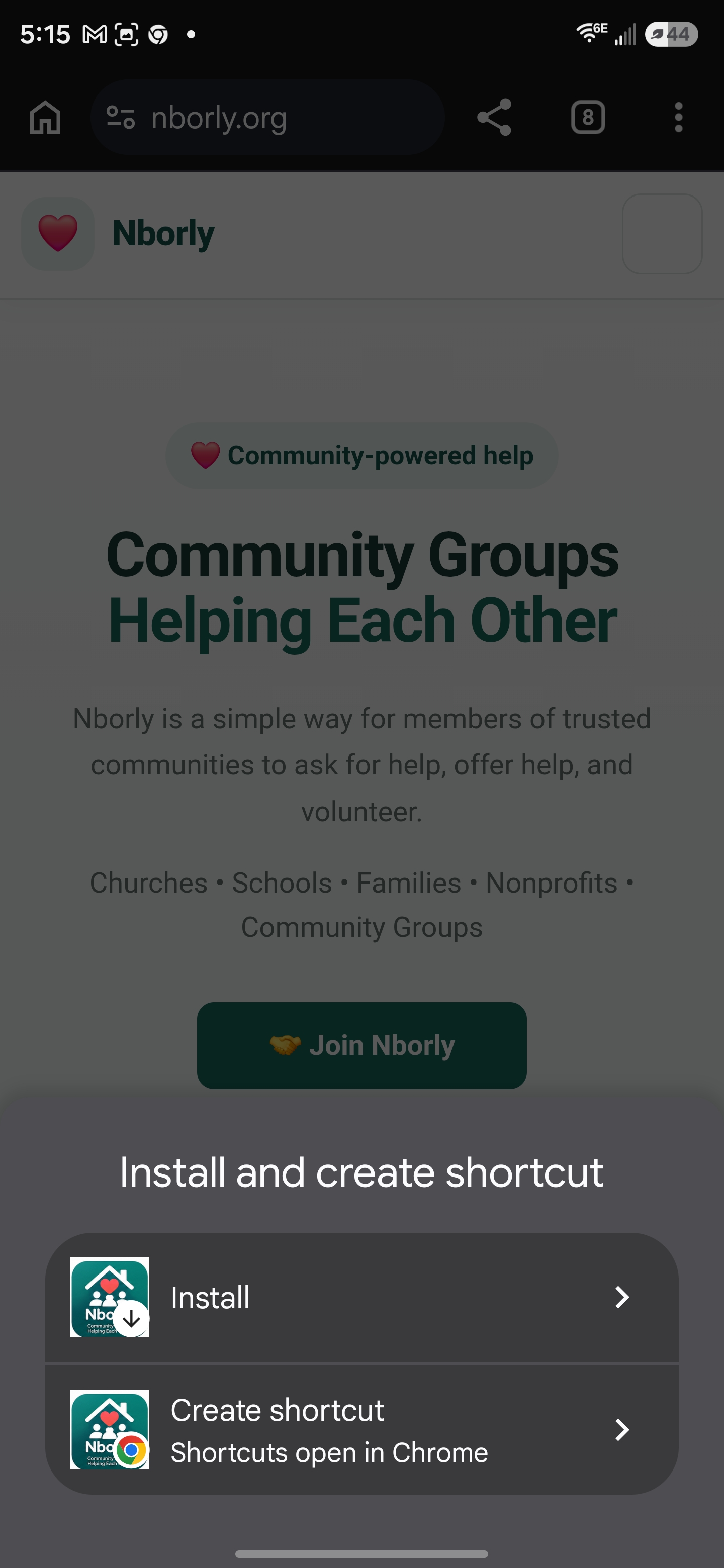
Select Install
Choose Install, not Create shortcut.
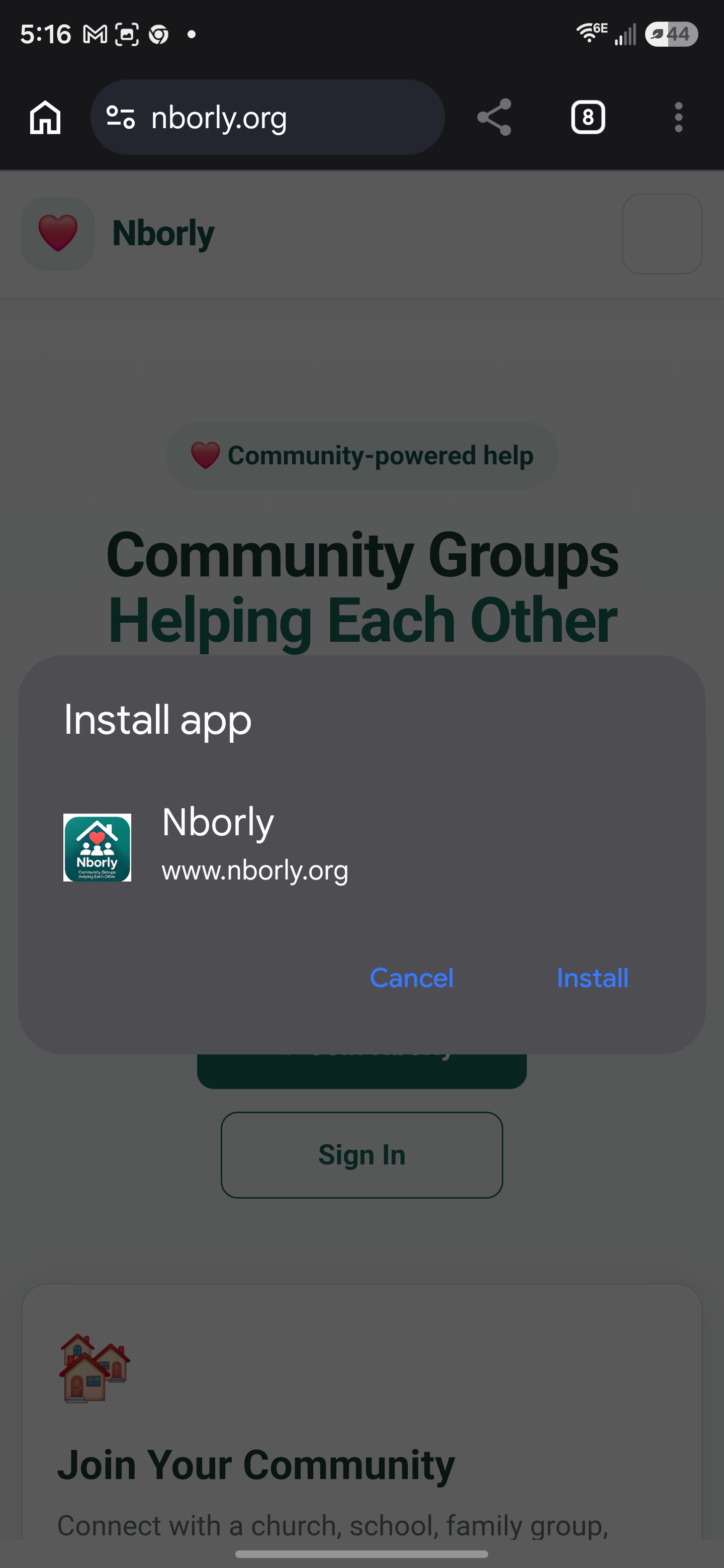
Confirm Installation
Chrome will show the Install app window for Nborly. Tap Install.
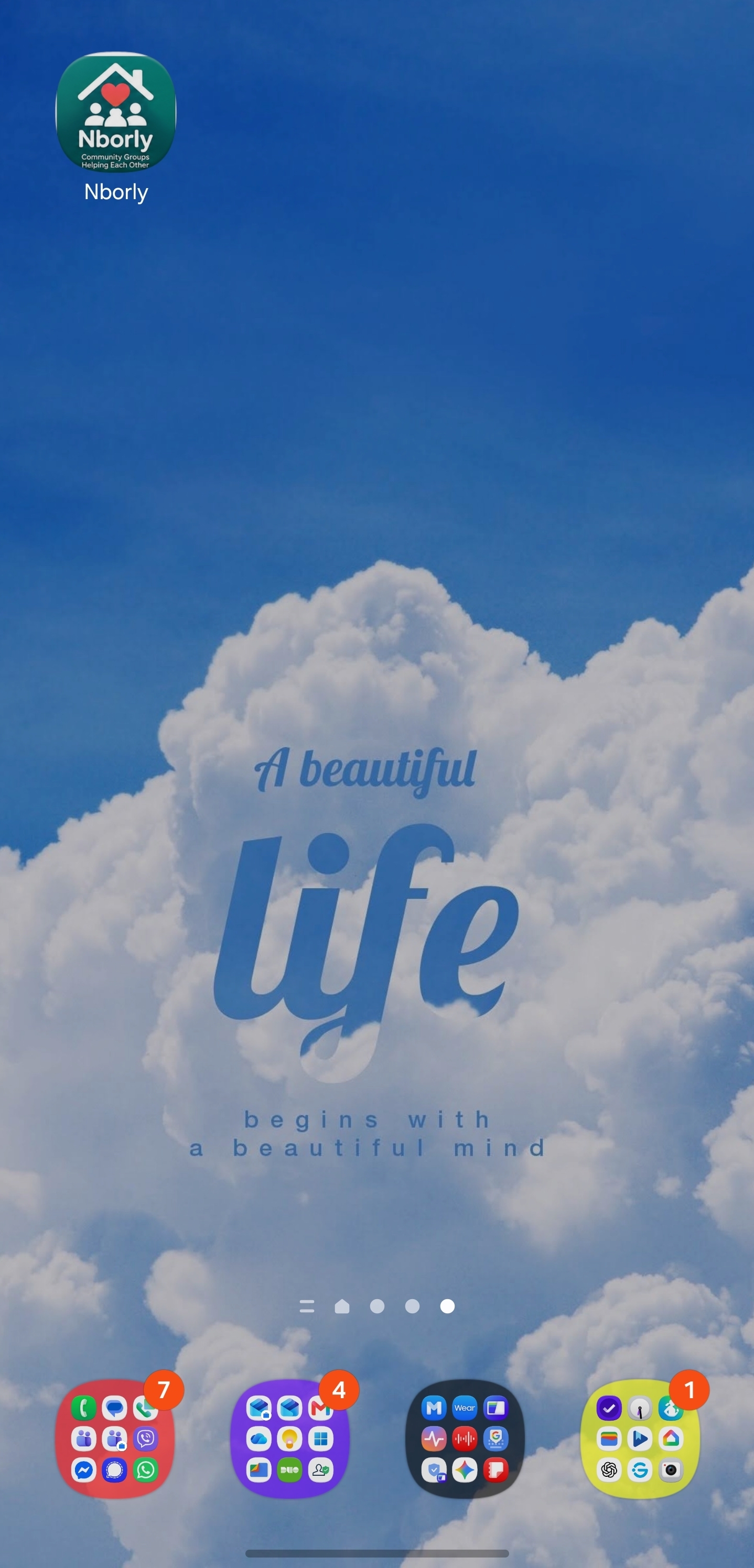
Open Nborly
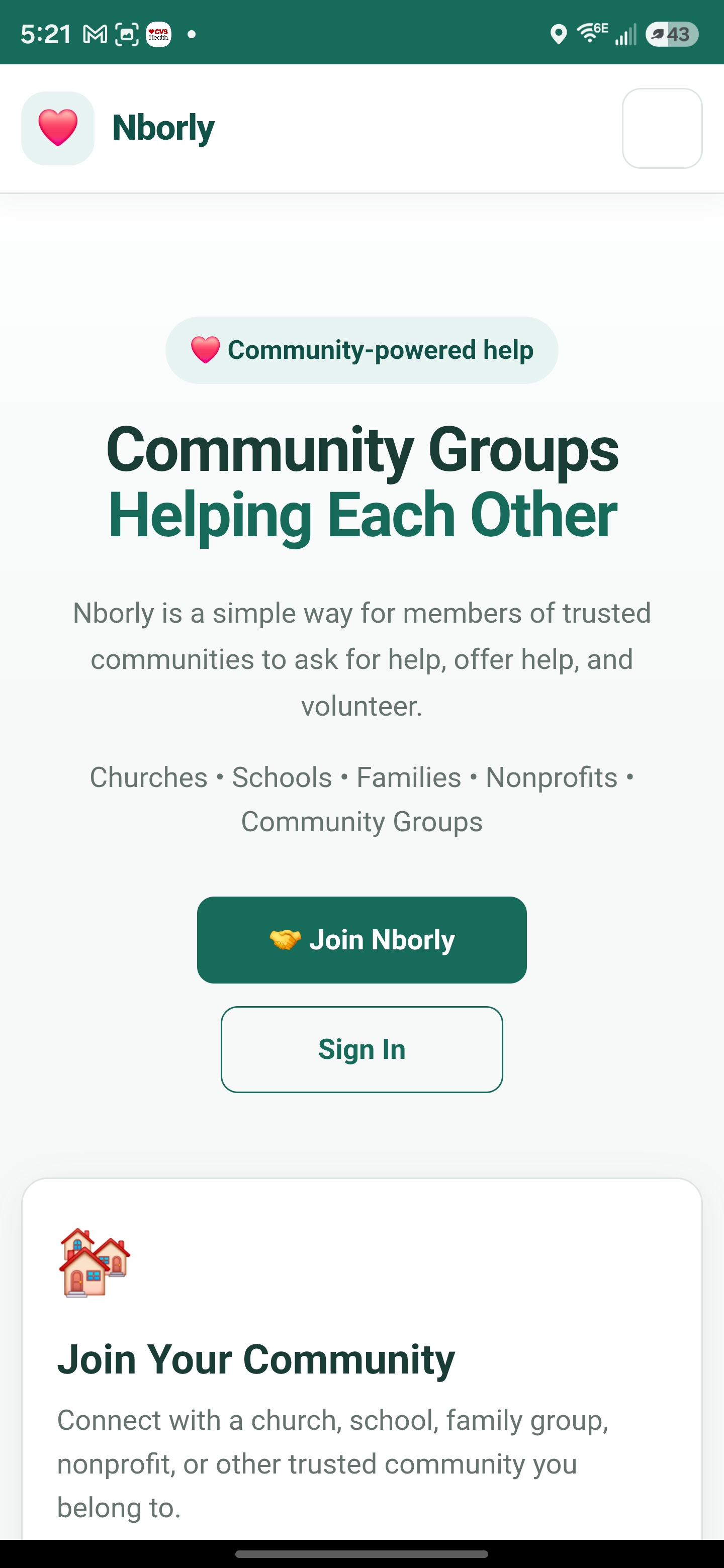
Find the Nborly icon on your Home Screen and tap it. Nborly will open in its own app window without the Chrome address bar.
🛡 Safety
Nborly is designed for everyday community assistance, volunteering, and communication between members of trusted groups.